For a beginner in the programming world, it's difficult to become familiar with all these Git commands. That's why Github created Github Desktop, a simple application to manage versioning, collaboration, and file storage.
What is Github Desktop?
Github Desktop is a free desktop application developed by Github that allows users to interact with their Github repositories locally. It's particularly useful for beginners or those who prefer a graphical interface to terminal commands.
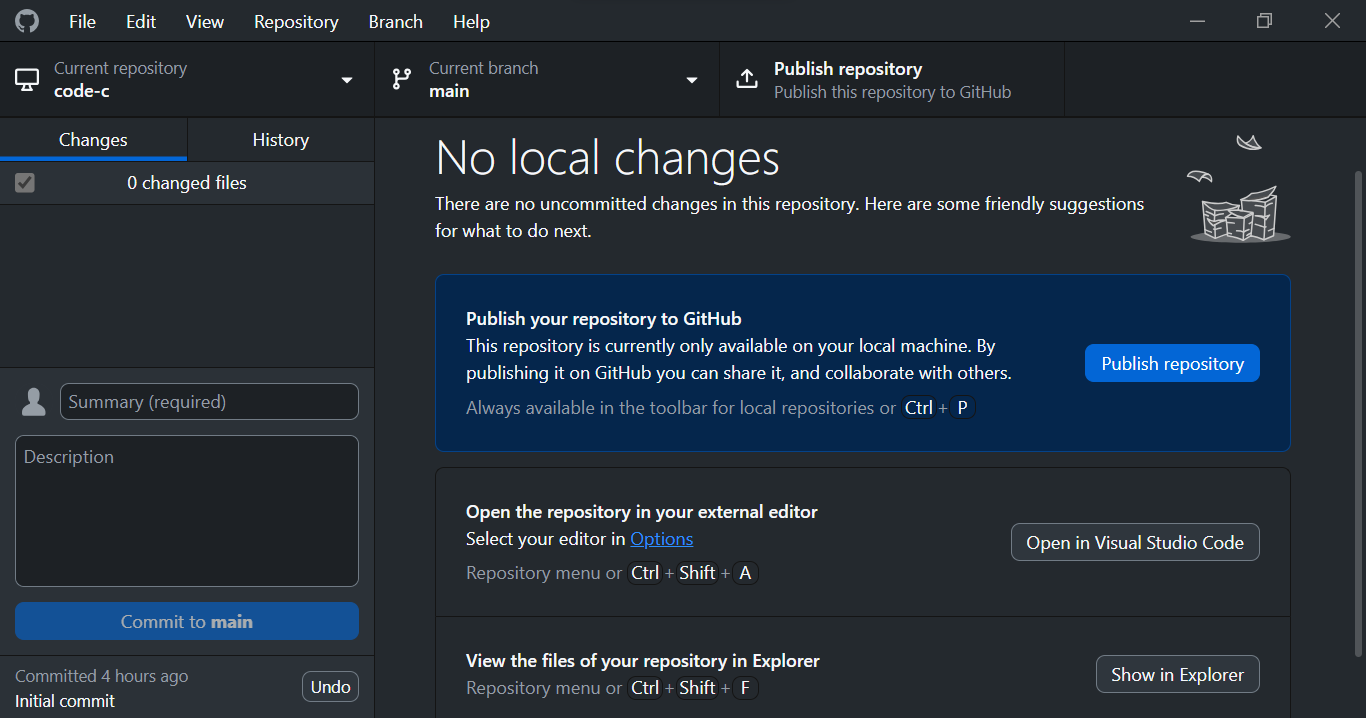
Github Desktop Features
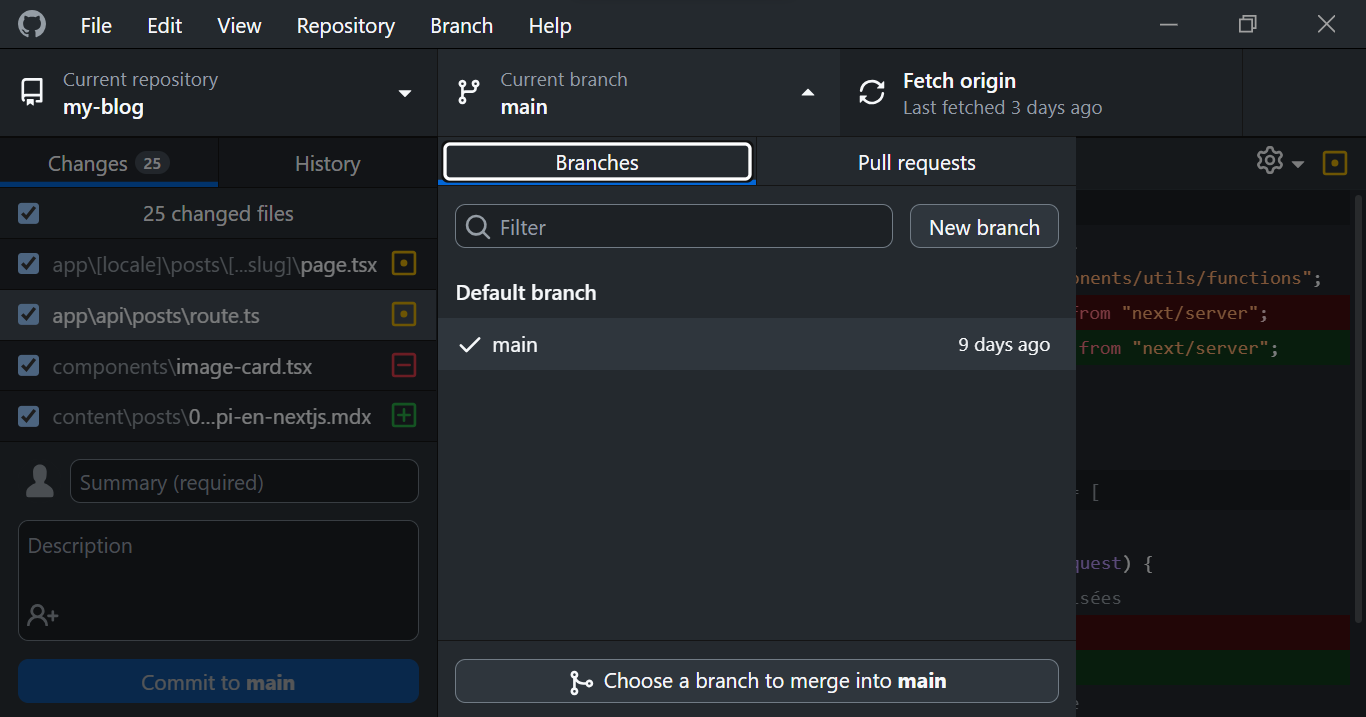
Github Desktop offers a clear and easy-to-use interface that allows you to view your branches, create repositories, clone repositories, manage your changes, and synchronize your repositories without typing a single Git command.
Repository Management
A repository is a space where you can store and manage source code, as well as other project-related files in a centralized and collaborative way.
There are several types of repositories:
- Public repositories: accessible to everyone
- Private repositories: accessible only to authorized collaborators
- Fork repositories: which are copies of existing repositories
In Github Desktop, there are several options to create a repository:
- Create a new repository
Before starting to write any code, you can create a repository directly on your computer and make it available on Github later. To do this:
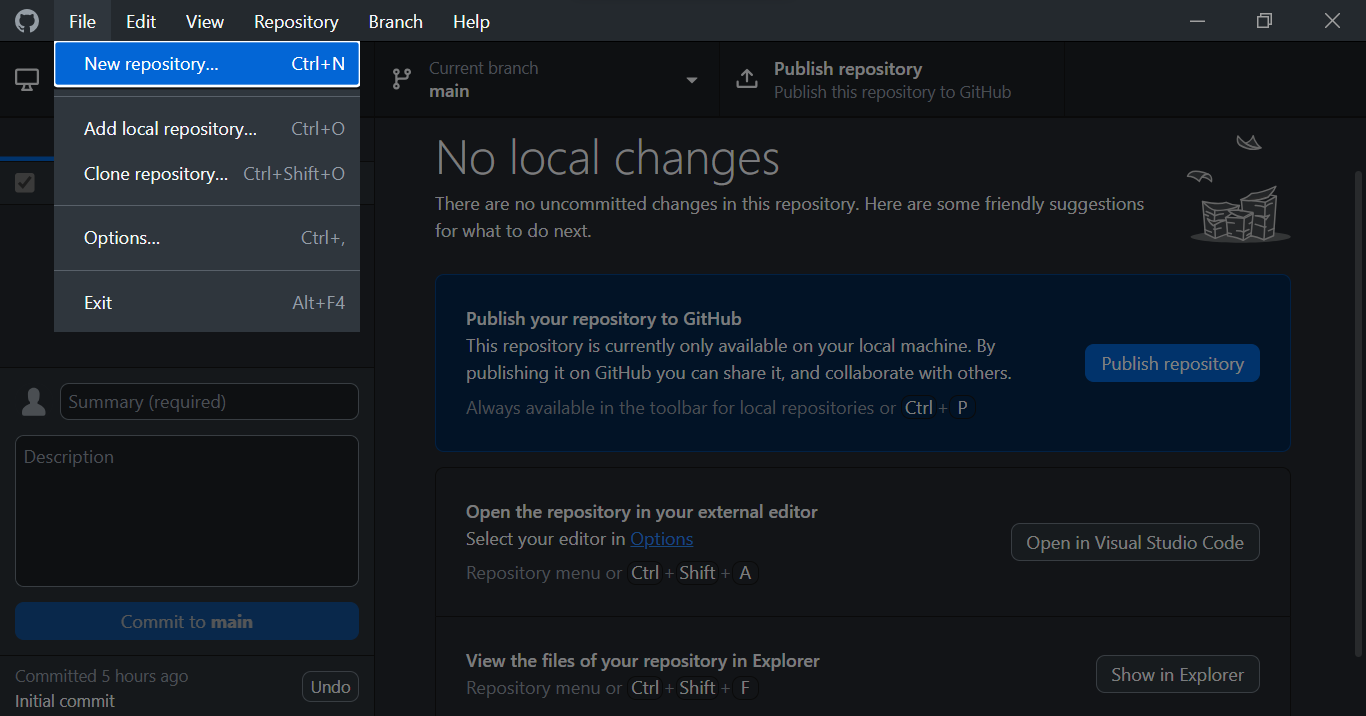
- In Github Desktop, click on File > New repository (or simply use the keyboard shortcut Ctrl + N).
- Then, fill in the different fields (repository name, project description, local project location, etc...)
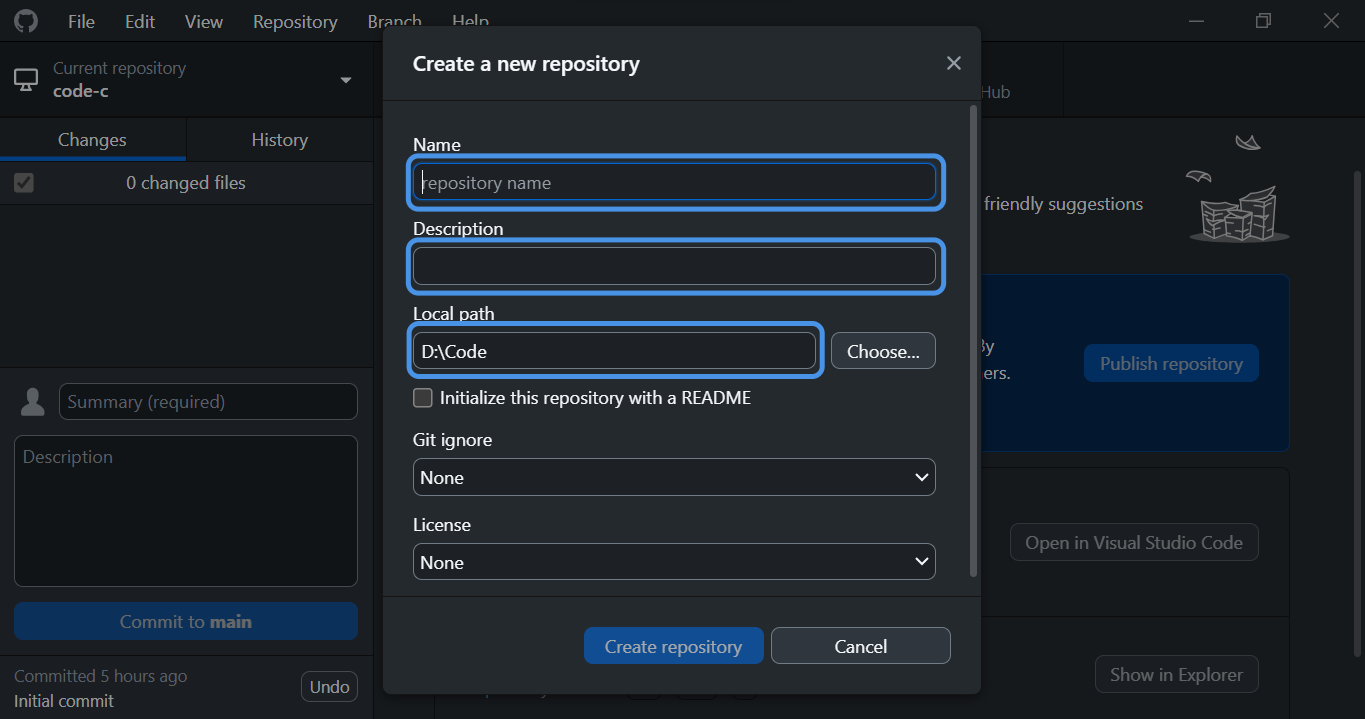
- Finally click on Create repository
- Add a local repository
You've already started a project locally and want to make it available on Github later, for this:
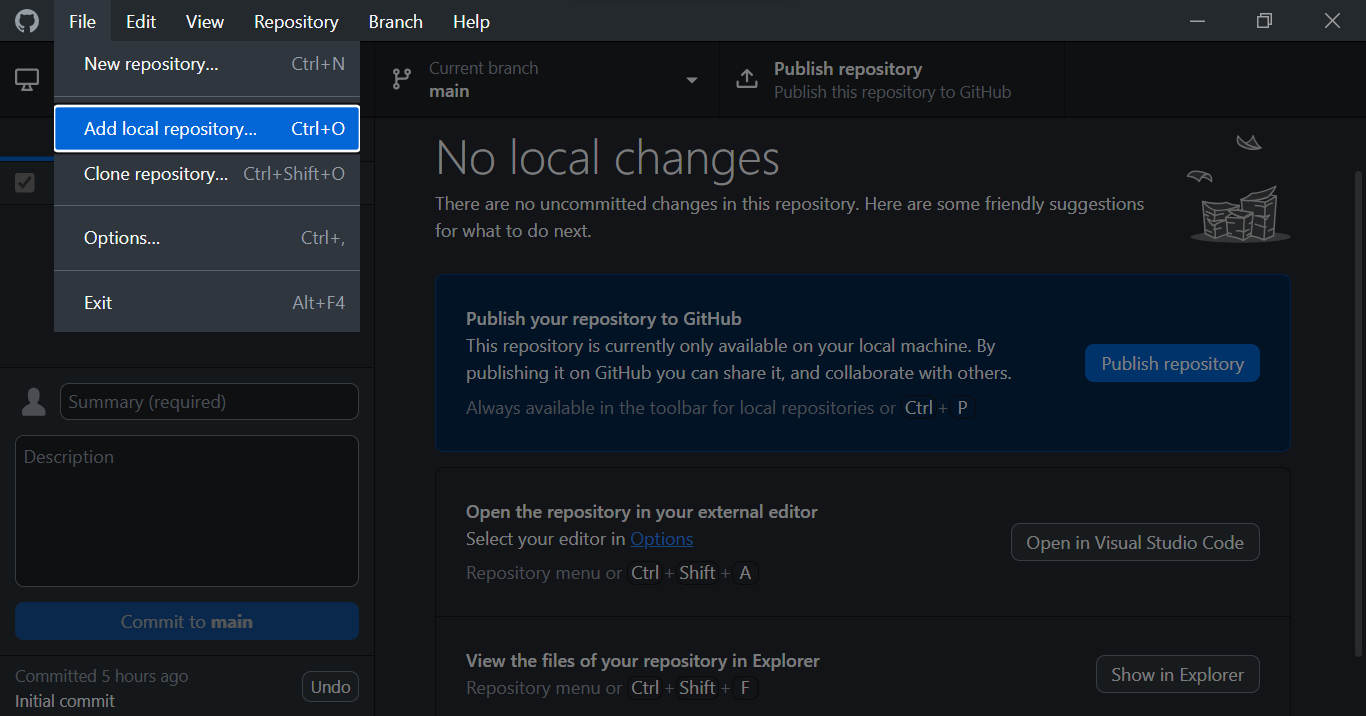
- In Github Desktop, click on File > Add local repository (or simply use the keyboard shortcut Ctrl + O).
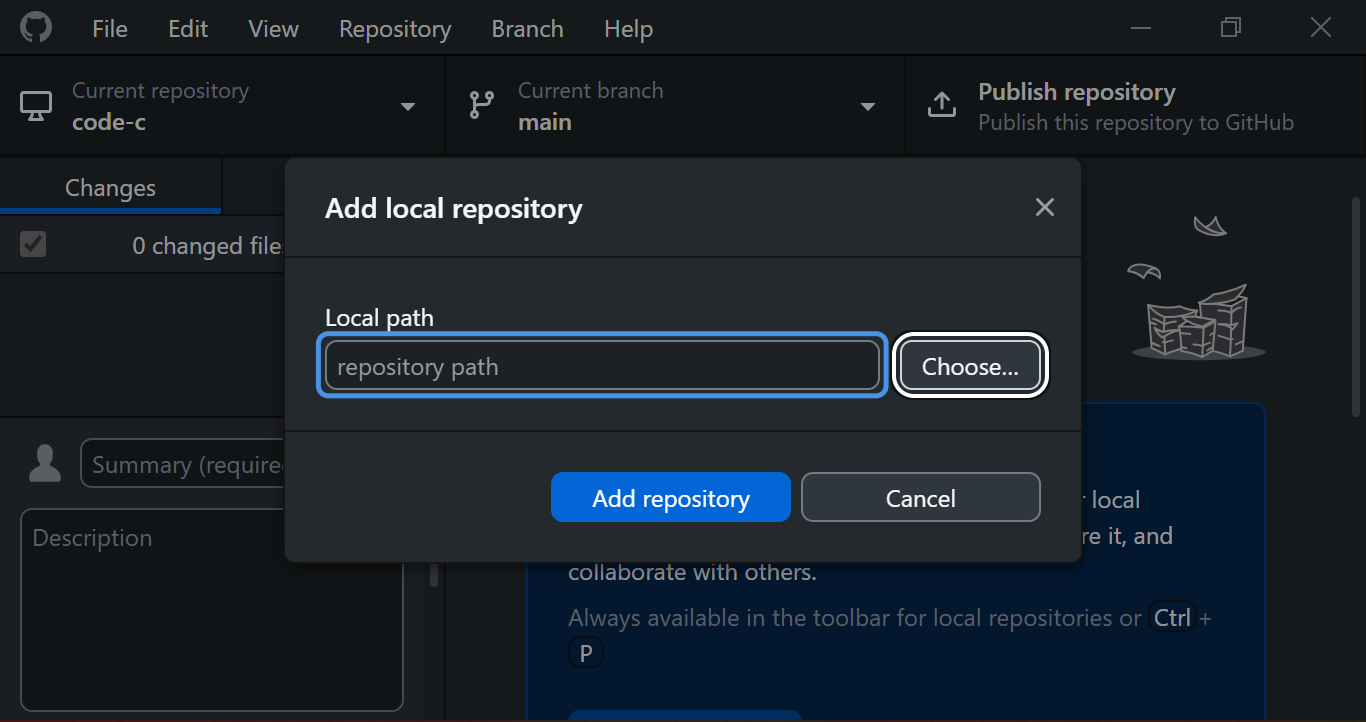
- Then choose the location where your repository is
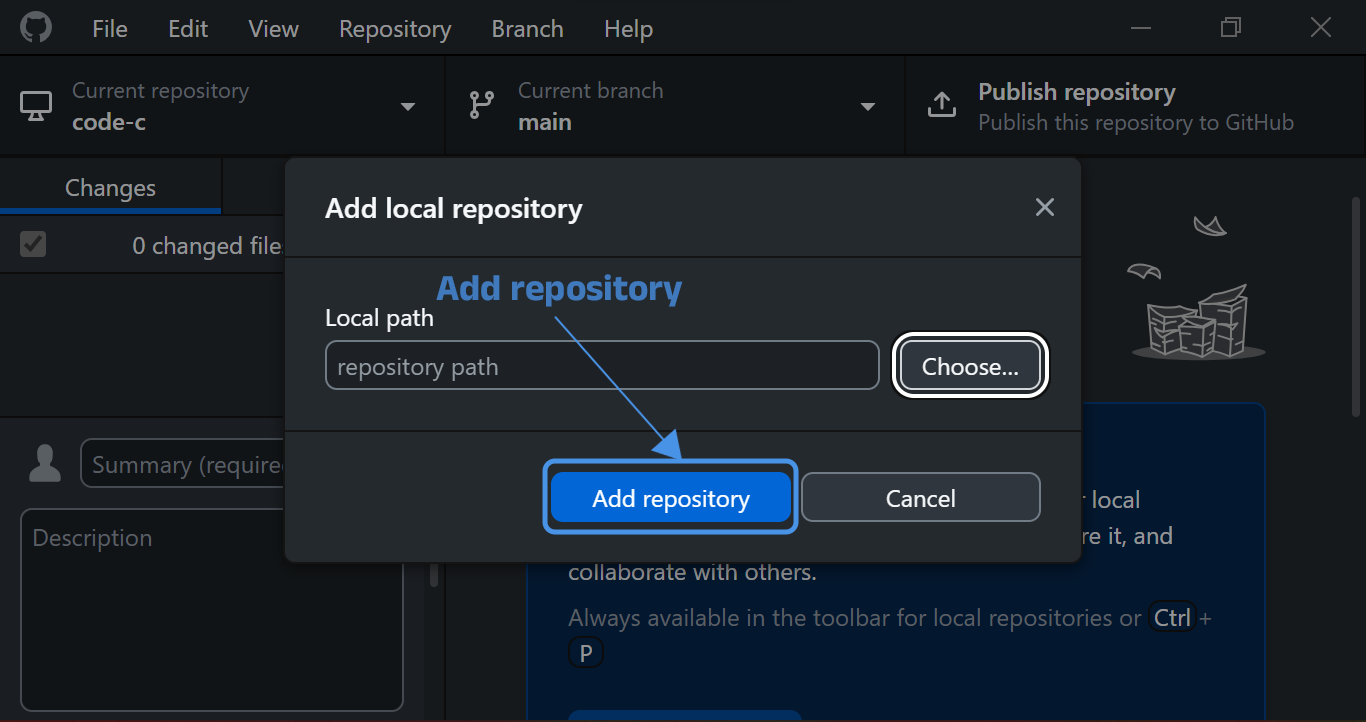
- And finally click on Add repository
- Clone a repository
You can also create a repository by cloning a project already hosted on Github.
- In Github Desktop, click on File > Clone repository (or simply use the keyboard shortcut Ctrl + Shift + O).
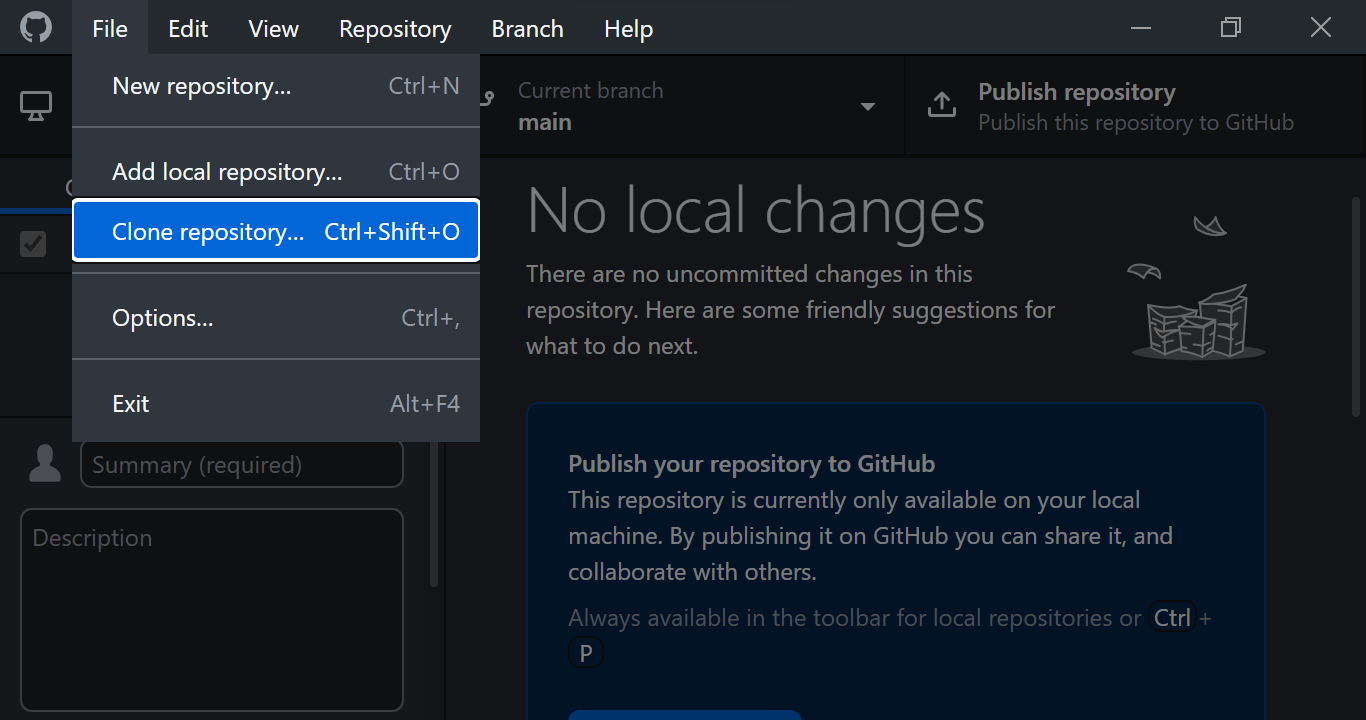
- Then enter the repository URL and choose the local location that will contain your repository.
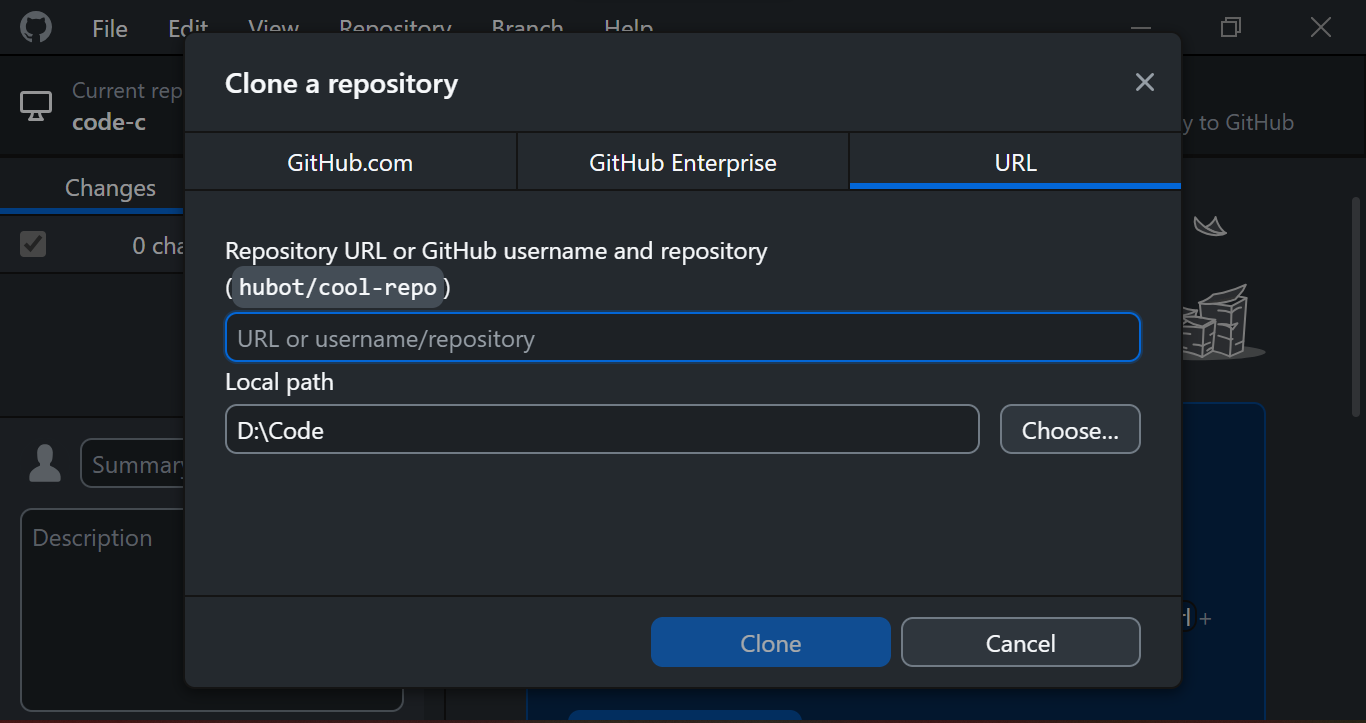
- Finally click on Clone
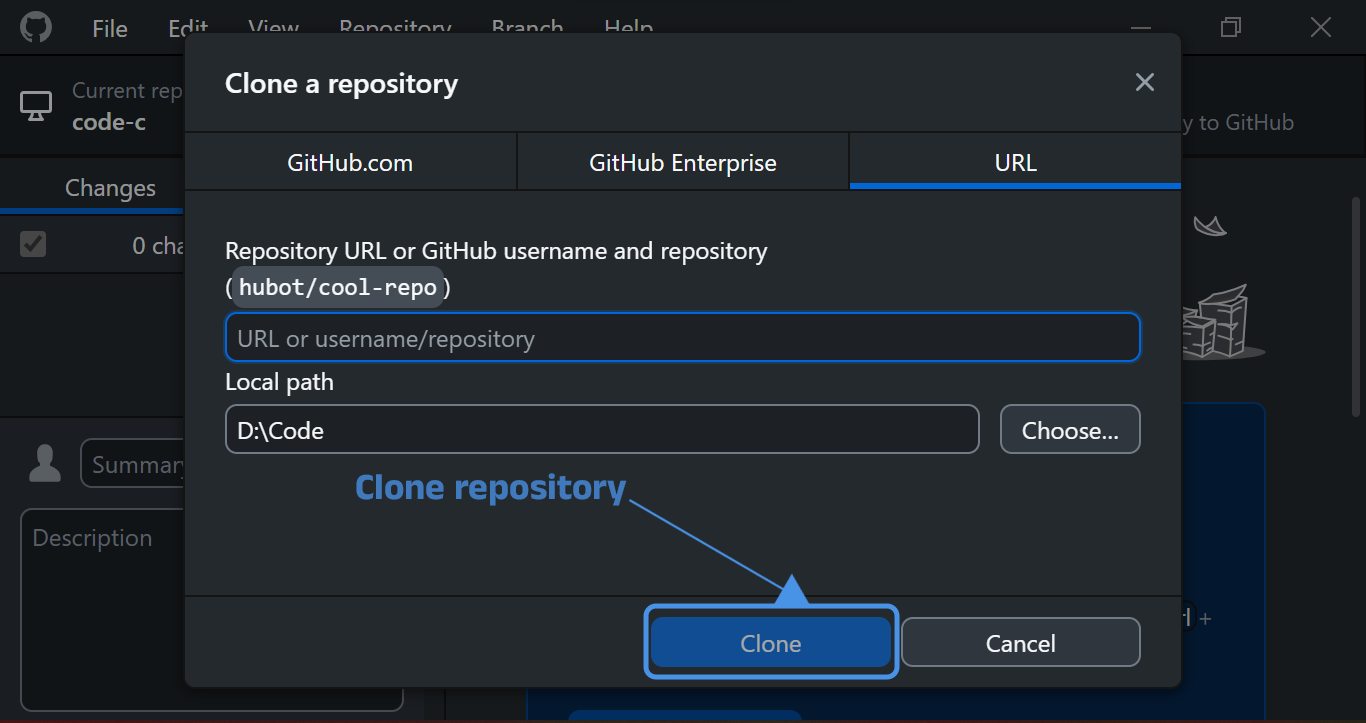
Publish a repository
After creating a repository, you need to make it available on Github by clicking on Publish repository or using the keyboard shortcut Ctrl + P. This way you can access your project on Github, share it, collaborate with others and make changes to it.
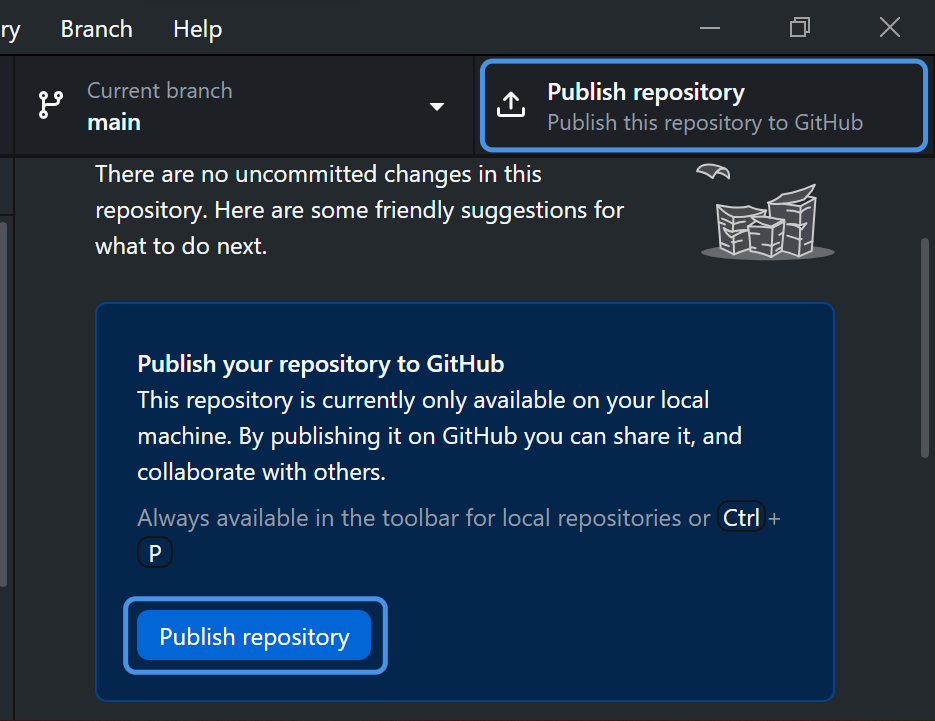
Changes preview
Before validating your changes, Github Desktop shows you a detailed preview of modified, added or deleted files. This allows you to validate only the necessary changes in the Staging Area.
The Staging Area is an area where you can modify, add and remove changes before including them in a commit.

Validate changes and synchronize repositories
A commit is an operation that records changes made to files in a repository. In other words, it will allow you to save the current state of your project. After validating the changes, you can synchronize them with your remote repository on Github in one click.
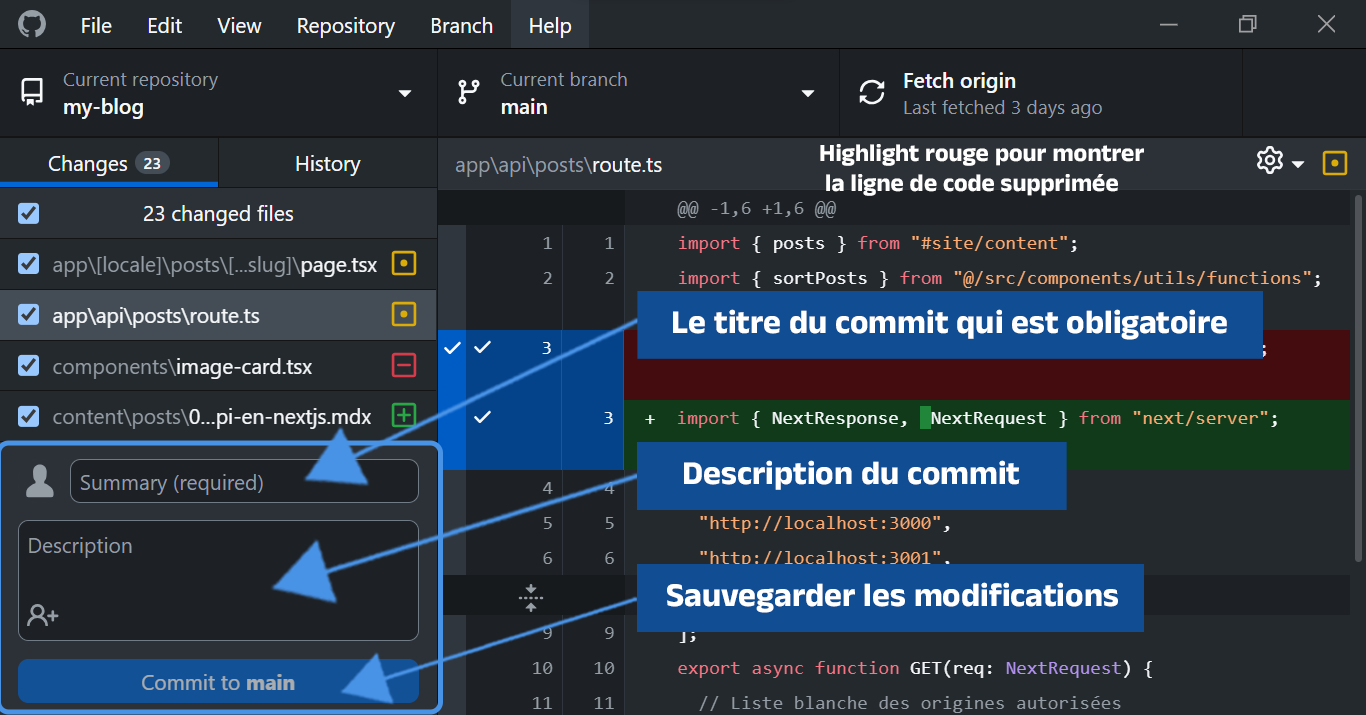
Share your changes
Once you've made a commit, you can send these changes to the remote repository which will update your project that will need to be redeployed in production. Your changes will then be available to other collaborators.

Collaborate with others
You're working in a team, and a colleague adds changes on Github. You then perform a Pull to integrate these changes into your local copy. So by performing a Pull, we retrieve the changes from the remote repository on Github and automatically merge them into our local branch.
Simplified branch management
A branch is a parallel version of a repository that allows you to develop and test new features without affecting the main version (master or main) of the code.
Creating a branch or switching from one branch to another has never been easier. You can also merge branches easily while having a preview of potential conflicts.
Getting Started with Github Desktop
Installation
Github Desktop is available on Windows, Mac and Ubuntu. You can download it from the official website desktop.github.com and then install it.